














Settings
The module works with the settings it has after installation. This chapter explains every one of them, section by section, so that you know what to change when your shop has a page cache, a cookie banner or partner sites.
How the settings page works
Open Orders › Order sources and click the Settings tab. The Settings tab, opened on the Overview. shows the page.
- Sections. The list on the left opens a section: Overview, then Detection, Consent and Attribution under Tracking, Referrer rules, Excluded sites and Test a link under Sources, Orders under Display, Data and upkeep under Data, and Help.
- One Save per section. Save stores the fields of its own section only. The confirmation, or what is wrong with a value, appears inside the section. Referrer rules and Excluded sites add and delete their entries with buttons of their own; Overview, Test a link and Help have nothing to save.
- Help on every field. The info button next to a label opens a short text under the field: what the setting does, what changes when you change it, and its value after installation.
- The status line above the sections sums up the state of the module (The four getting-started steps).
- The buttons at the top take you to Test a link, to the Dashboard and to the Help section; Modules, at the top left, takes you back to the Module Manager. Help reminds you how the module works, explains its words, lists what is good to know and gives the address of support. When this guide ships with the module, Help links to it too: in the language of your back office when that translation is included, otherwise in English.
With several shops, a section is saved for the shop chosen in PrestaShop’s shop selector (Several shops).
Detection: how a visit is noticed
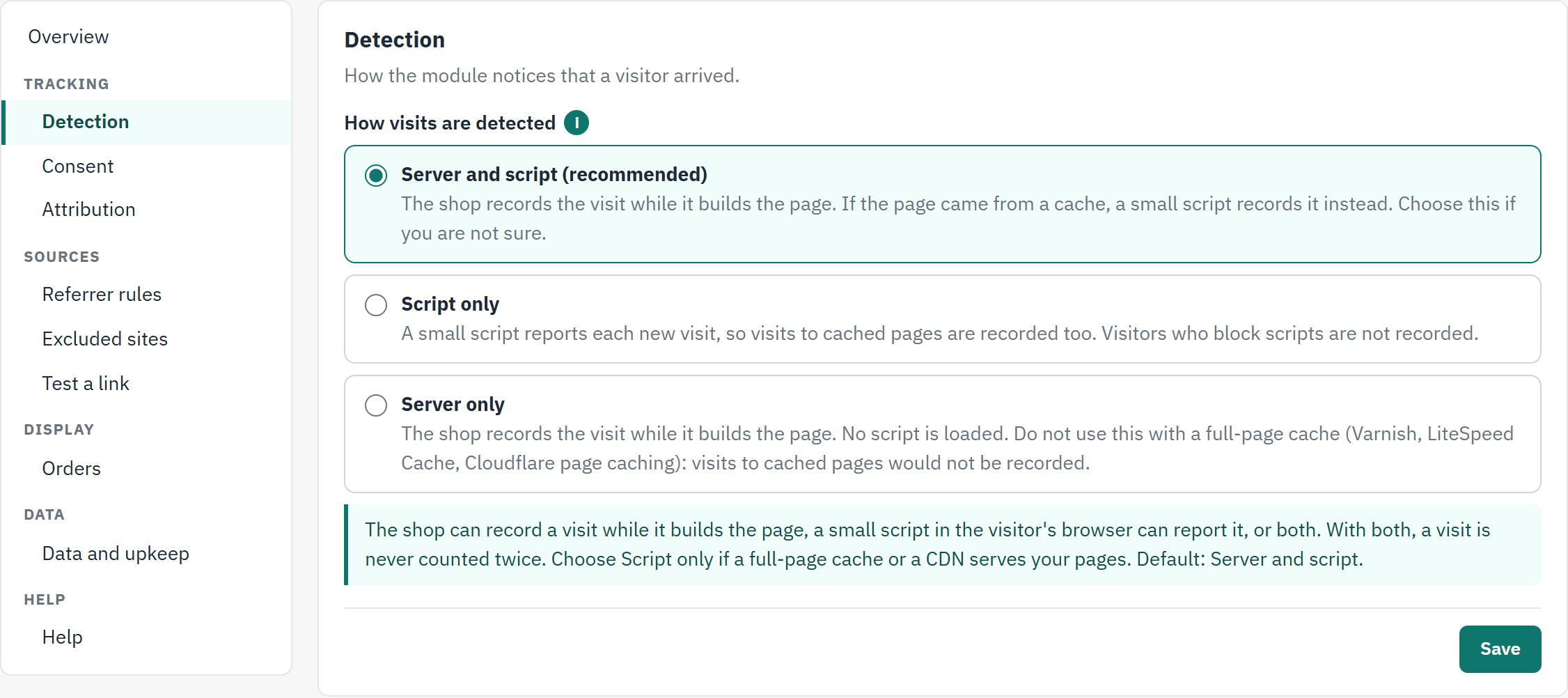
- How visits are detected: three ways to record a visit.
- The info button. It opens the help text of the field, here under the three choices.
- Save stores the section.
| Choice | What it does | Choose it when |
|---|---|---|
| Server and script (recommended) | The shop records the visit while it builds the page. If the page came from a cache, a small script records it instead. A visit is never counted twice. | You are not sure. It is the setting after installation. |
| Script only | A small script reports each new visit. It also works when a full-page cache or a CDN serves your pages. Visitors who block scripts are not recorded. | A full-page cache or a CDN serves your pages, and always when it removes cookies from the pages it stores. |
| Server only | The shop records the visit while it builds the page. No script is loaded. | You want no script of the module on your pages, and no full-page cache is in front of your shop. |
Consent: when recording may start
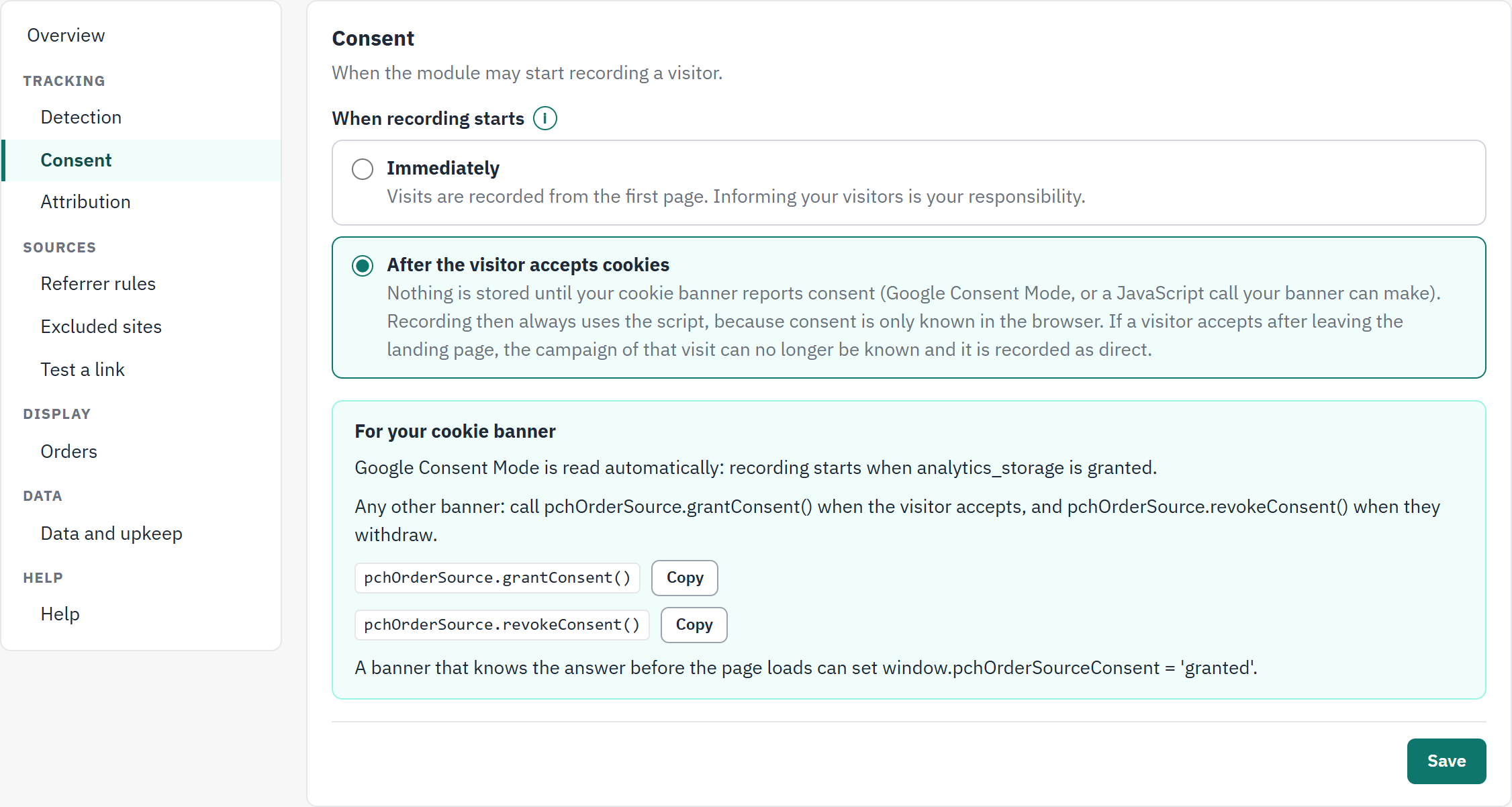
- When recording starts: at once, or after consent.
- For your cookie banner: what your banner has to do. The box appears when the second choice is selected.
- Copy puts a call on the clipboard, to paste into your banner’s settings.
| Choice | What it does |
|---|---|
| Immediately | Visits are recorded from the first page. Informing your visitors is your responsibility. It is the setting after installation. |
| After the visitor accepts cookies | Nothing is stored, and no cookie is set, until your cookie banner reports consent. Recording then always uses the script, whatever Detection says, because only the browser knows the visitor’s answer. |
With the second choice, the module has to learn the visitor’s answer from your banner. There are three ways:
- Google Consent Mode. Nothing to do: the module reads it, and recording starts when
analytics_storageis granted. - Any other banner. Let it call
pchOrderSource.grantConsent()when the visitor accepts, andpchOrderSource.revokeConsent()when they withdraw. Most banners have a field for a script to run on acceptance. - A banner that knows the answer before the page loads can set
window.pchOrderSourceConsent = 'granted'.
The JavaScript calls for a cookie banner has the details for the person who sets up your banner.
Attribution: the window and your own visits
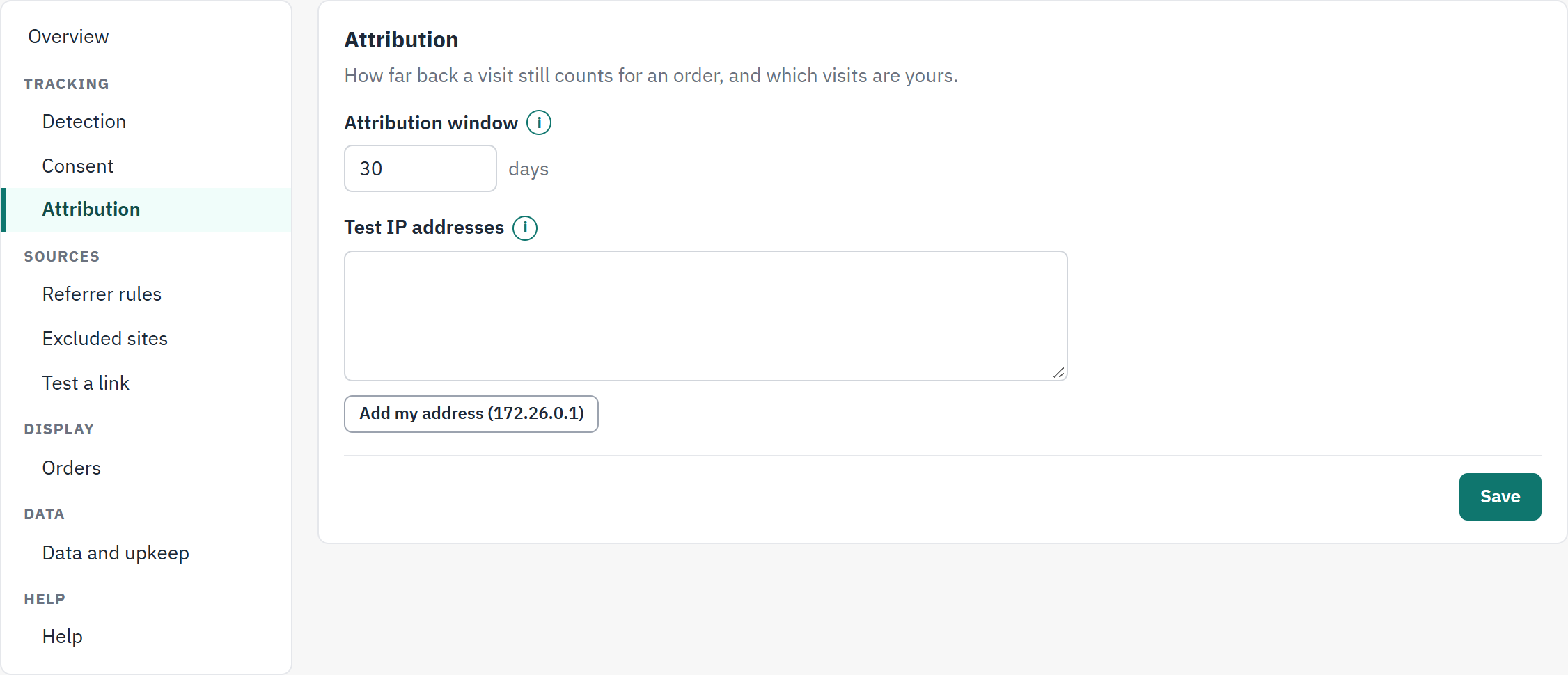
- Attribution window, in days.
- Test IP addresses, one per line.
- Add my address, followed by the address you are working from: adds it to the list.
| Field | What it does | After installation |
|---|---|---|
| Attribution window | An order gets its source from the visits of the same visitor in the days before it. A longer window gives more orders a source, and older ones. It is also how long the visitor’s cookie lasts. From 1 to 365 days. | 30 days |
| Test IP addresses | Visits from these addresses are marked as tests and left out of the dashboard. Write one address per line, or click Add my address under the field to add your own, then click Save. The address itself is never stored with a visit. | Empty |
A value that cannot be right is refused with a message that says how to fix it, for example: “192.0.2 is not an IP address. Write one address per line, for example 192.0.2.10.”
Referrer rules: a source of your choice for a site
Without a rule, a site that links to your shop is recorded under its own domain, with the medium referral. A rule replaces that with the source, medium and campaign you choose. You only need rules for partner sites, comparison sites or your own other websites: search engines and social networks are recognised without one.
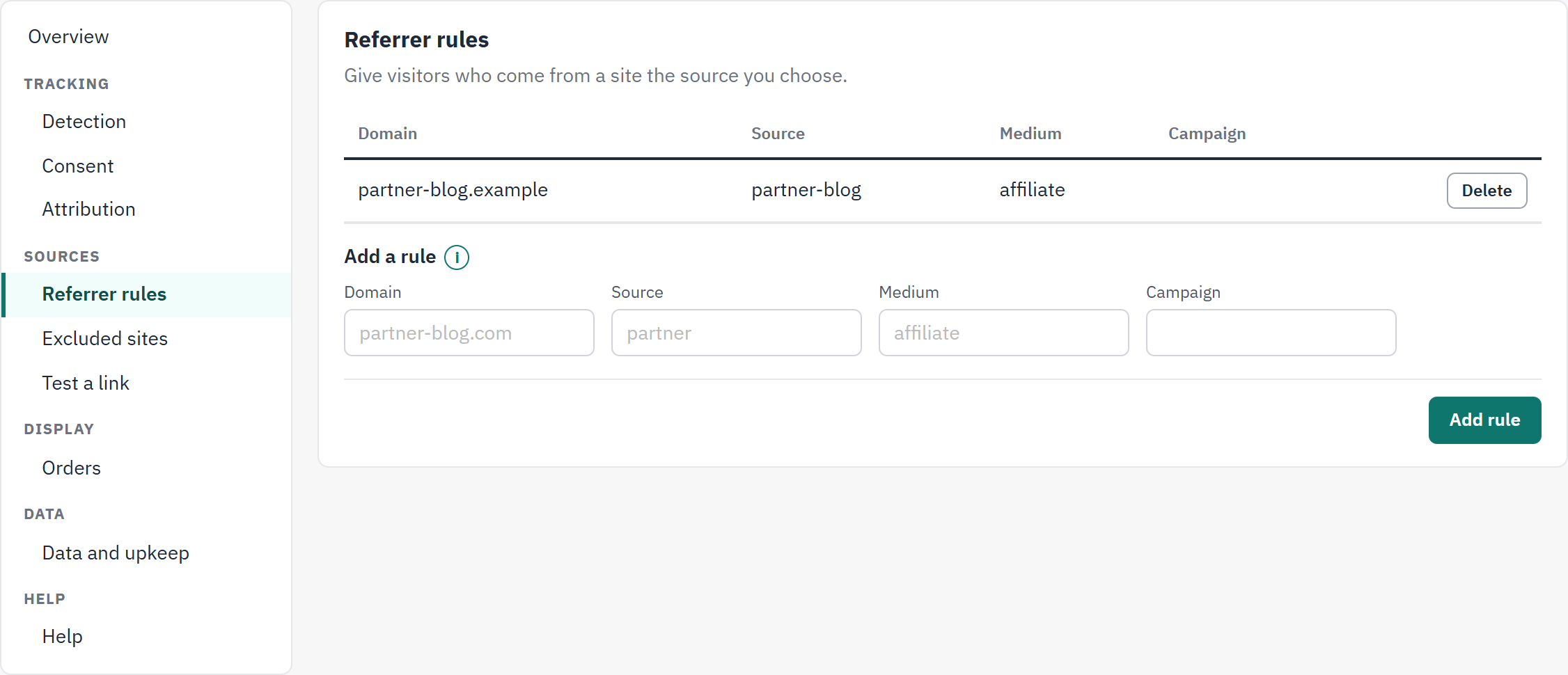
- Your rules: Domain, Source, Medium and Campaign.
- Delete removes a rule.
- Add a rule: the form that adds a rule, with its button Add rule.
- Open Settings › Referrer rules.
- Under Add a rule, enter the Domain of the site, without
https://and without a page:partner-blog.example. - Enter the Source and the Medium the visits should get, for example
partner-blogandaffiliate. Campaign is optional. - Click Add rule. The rule appears in the table and applies to the visits that arrive from now on.
- A rule also covers the subdomains of its domain:
www.partner-blog.example,shop.partner-blog.example. - A rule without a medium gets
referral. - A second rule for the same domain replaces the first.
- A link with UTM parameters, or an ad click, still decides first: a rule only applies when the link itself says nothing.
- Visits already recorded keep the source they got.
Excluded sites: pages a customer only comes back from
A customer who pays on another site returns to your shop from that site. If it counted as a source, your orders would seem to come from the payment page. Excluded sites never count as where a visitor came from.
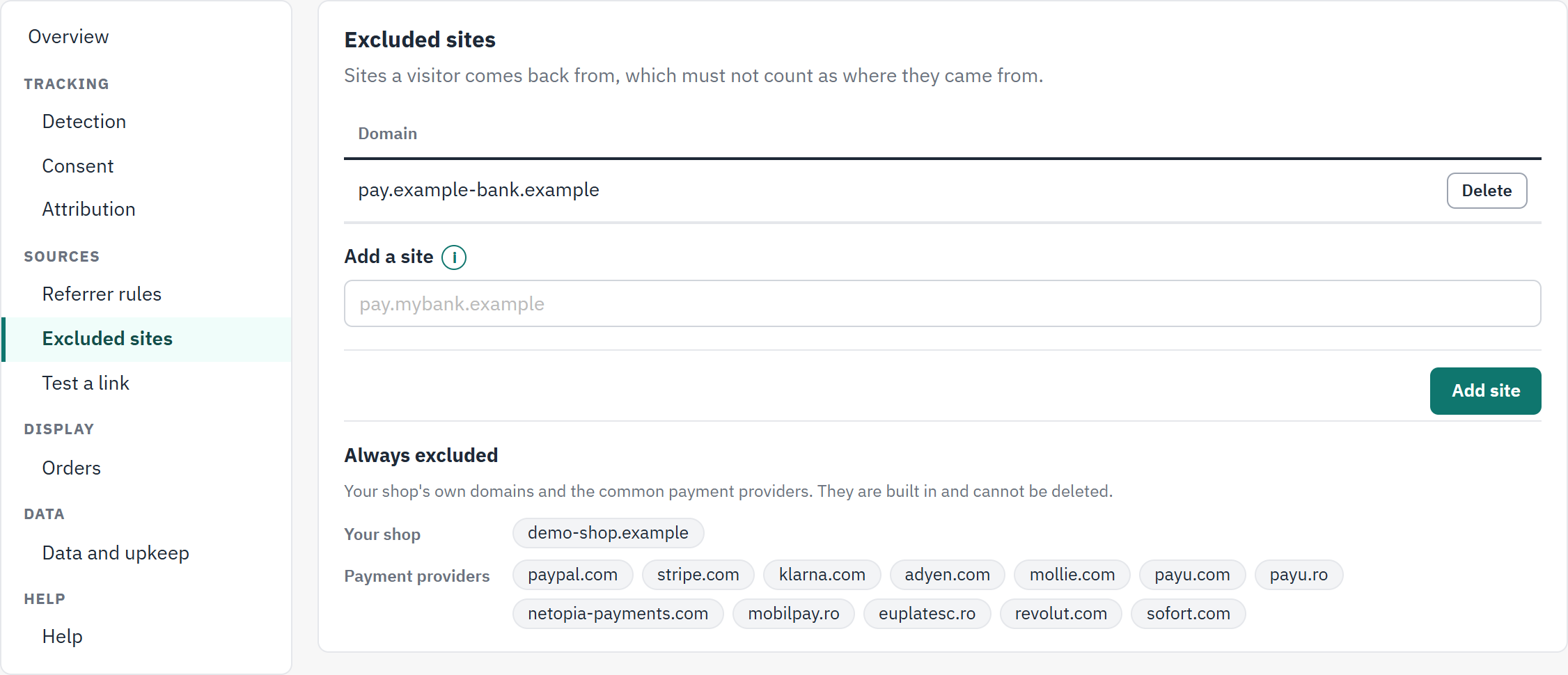
- The sites you excluded, each with Delete.
- Add a site: the form that adds a site, with its button Add site.
- Always excluded: under Your shop your shop’s own domains, under Payment providers the payment providers the module knows. This list cannot be changed.
The module already excludes the domains of your own shops and these payment providers, with their subdomains: paypal.com, stripe.com, klarna.com, adyen.com, mollie.com, payu.com, payu.ro, netopia-payments.com, mobilpay.ro, euplatesc.ro, revolut.com and sofort.com.
Add a site when you see it among your sources and it is only a step of your checkout, for example the payment page of your bank: enter its domain under Add a site and click Add site. A missing bank rarely matters, because the page a payment returns to is never treated as an arrival.
Test a link: see the source before you publish
You build campaign links by hand, and a typing mistake only shows when orders arrive under the wrong source. Test a link shows at once how a link will be recorded. It stores nothing and does not open the link.
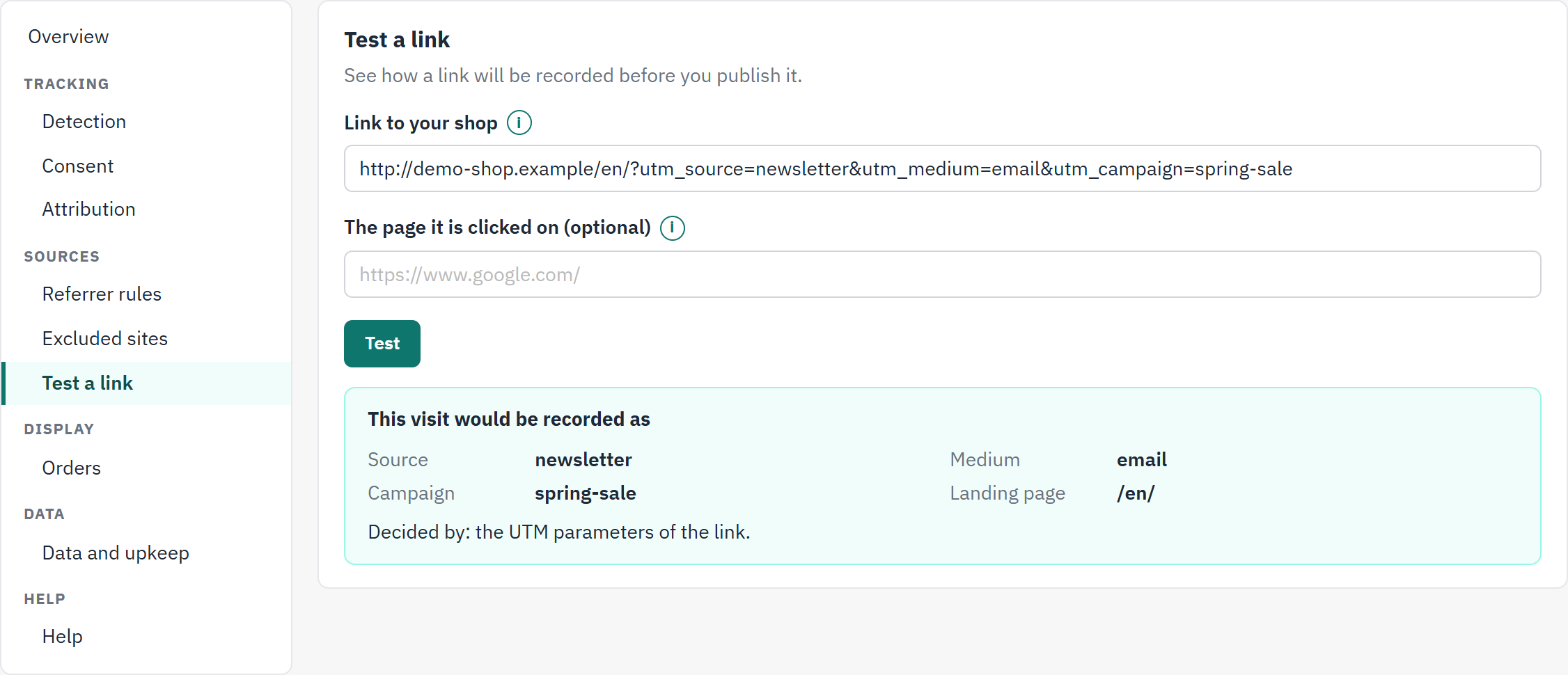
- Link to your shop: the link as you will publish it.
- The page it is clicked on (optional): where the link will stand, when that matters.
- Test shows the result.
- The source, medium, campaign and landing page the visit would get.
- Decided by: the rule that gave the visit its source.
- Open Settings › Test a link, or click Test a link at the top of the settings.
- Paste the link into Link to your shop. It must lead to your own shop.
- If you want to know how a link without parameters is recorded, also enter the page it will be clicked on, for example the address of a partner’s article.
- Click Test and read the result under This visit would be recorded as.
| Decided by says | Meaning |
|---|---|
| the UTM parameters of the link | The link carries utm_source. |
| the click ID, with the name of the ad platform | The link carries the mark of an ad click. |
| your referrer rule for a domain | The page it is clicked on belongs to one of your rules. |
| a search engine | The page it is clicked on is a search engine. |
| a social network | The page it is clicked on is a social network. |
| the referring site | Another site: the visit gets its domain as source and the medium referral. |
| nothing: the referring site is excluded, so the visit is direct | The page belongs to an excluded site. |
| nothing: no parameter and no referrer, so the visit is direct | The link says nothing and no page was given. |
If the result is not what you expect, check the spelling of utm_source and utm_medium in the link first. A link that does not lead to your shop is refused, with the address it has to start with. Building campaign links shows three complete examples.
Orders: where the source is shown
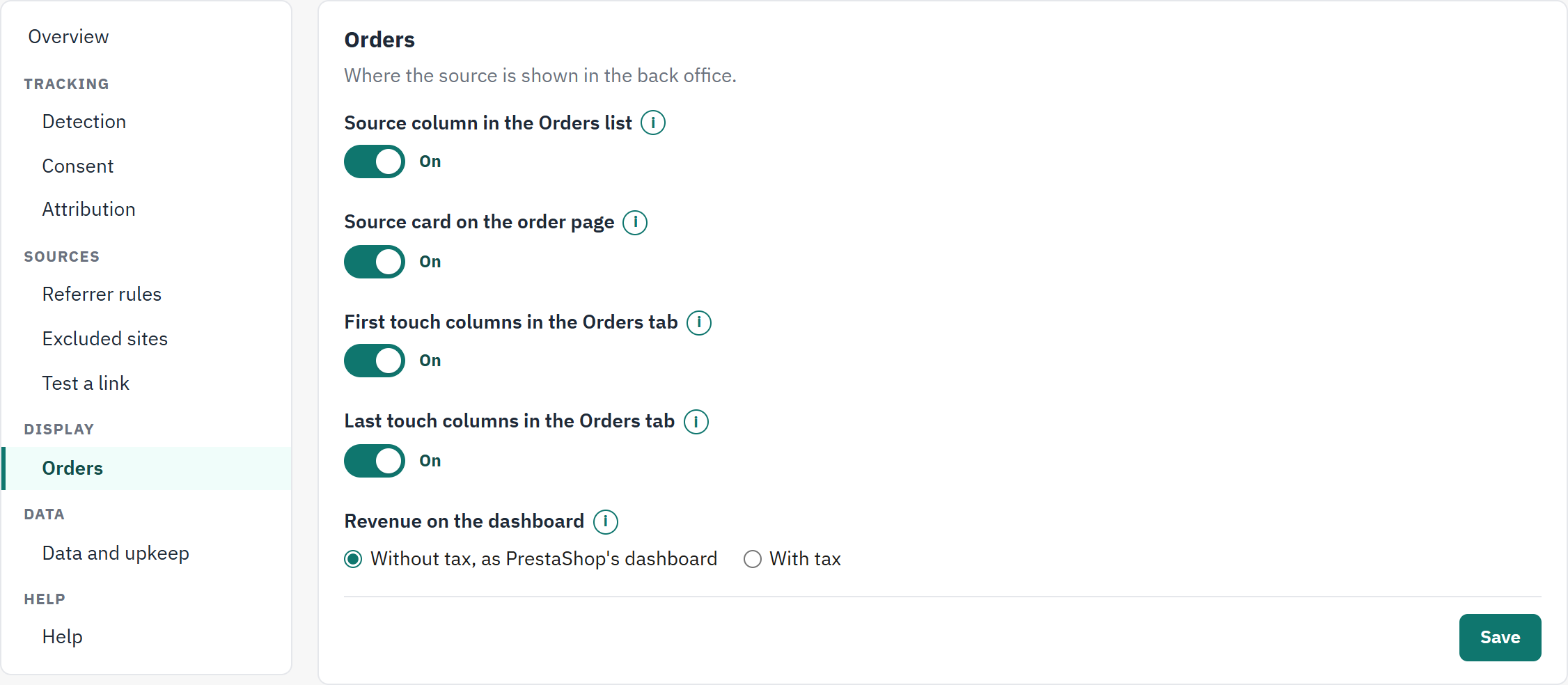
- The switches for PrestaShop’s list of orders and its order page.
- The switches for the columns of the module’s Orders tab.
- Revenue on the dashboard: without or with tax.
| Field | What it does | After installation |
|---|---|---|
| Source column in the Orders list | Adds the column Source, with its filter, to PrestaShop’s own list of orders (The Source column in the Orders list). | On |
| Source card on the order page | Adds the card with the first and the last source of the order and the visits before it (The Order source card on the order page). | On |
| First touch columns in the Orders tab | Shows the first source, medium and campaign of each order in the module’s Orders tab. | On |
| Last touch columns in the Orders tab | Shows the last source, medium and campaign there. | On |
| Revenue on the dashboard | Without tax, as PrestaShop’s dashboard counts revenue without tax and without shipping, as the Sales figure of PrestaShop’s dashboard does (What each number means says what still differs between the two). With tax counts what the customer paid for the products, with tax and still without shipping, which is closer to what most ad platforms receive as the value of an order. | Without tax |
Data and upkeep: how long visits are kept
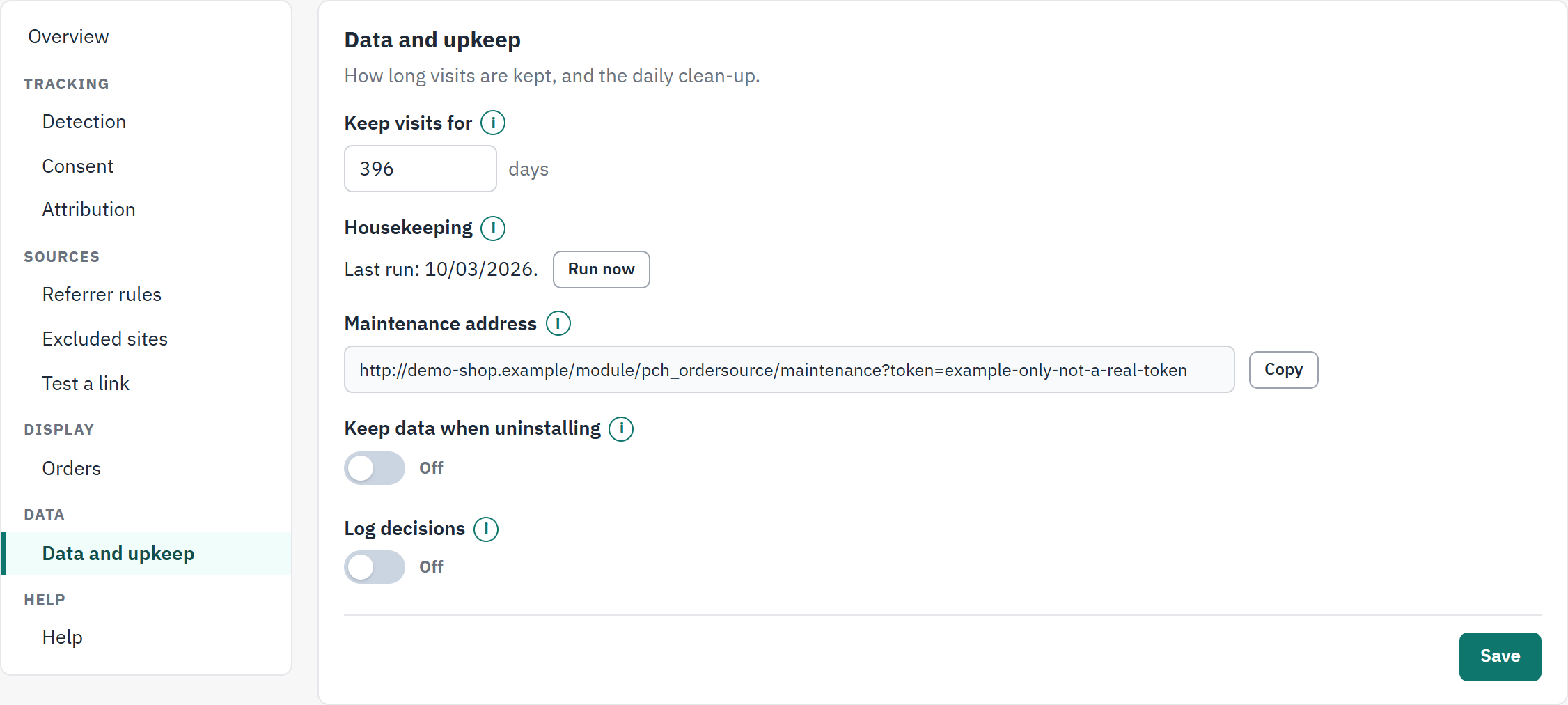
- Keep visits for, in days.
- Housekeeping: the last run, and Run now.
- Maintenance address, with Copy. The picture shows a made-up address: yours holds a secret.
- Keep data when uninstalling.
- Log decisions.
| Field | What it does | After installation |
|---|---|---|
| Keep visits for | Older visits are deleted every day. An order keeps its source for as long as the order exists. From 30 to 1095 days. | 396 days: 13 months, so a month can be compared with the same month of last year |
| Housekeeping | The daily clean-up that deletes the old visits. It runs by itself once a day when someone opens the back office. Run now starts it at once. | Runs by itself |
| Maintenance address | For a shop whose back office is not opened every day: an address that a scheduled task of your hosting can call once a day to run the housekeeping (The maintenance address). It contains a secret; do not publish it. | Ready to copy |
| Keep data when uninstalling | Off: uninstalling deletes all visits, order sources and settings. On: they stay, and installing again finds them. Switch it on before a Reset in the Module Manager (Upgrade, disable, reset or uninstall). | Off |
| Log decisions | Writes what was recorded or skipped, and why, to Advanced Parameters › Logs. Switch it on to find out why a visit is missing, and off again afterwards. | Off |