














The dashboard
The dashboard answers one question: which sources bring orders and revenue? It counts valid orders and their revenue, by the rules of PrestaShop’s own dashboard, and puts the visits of each source next to its orders.
Open Orders › Order sources. The page opens on the Dashboard tab. Each page of the module is titled after its tab, under the line Order sources.
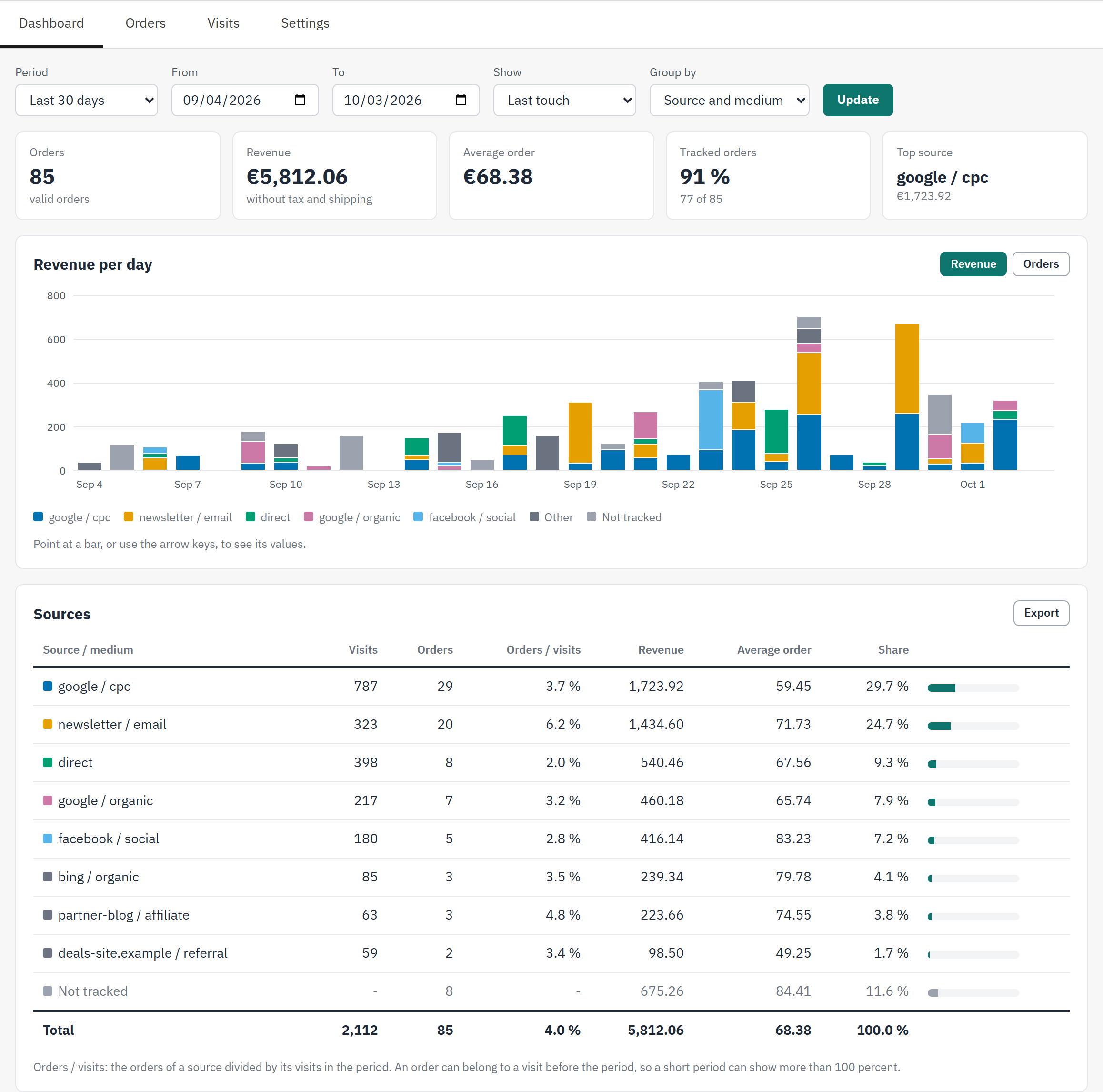
- The filters: the period, first or last touch, and how the rows are grouped.
- Five figures for the period.
- The chart: revenue or orders over time, one colour per source.
- The Sources table: one row per source, with its visits, orders and revenue.
Choose what you look at
Three filters above the figures decide what the whole page shows.
| Filter | Choices | After installation |
|---|---|---|
| Period | Last 7 days, Last 30 days, This month, Last month, Last 90 days, This year, or Custom with two dates of your choice | Last 30 days |
| Show | Last touch or First touch | Last touch |
| Group by | Source and medium, Source or Campaign | Source and medium |
The page updates as soon as you choose a period, a touch or a grouping. The two dates, From and To, are always shown: they say which days the period covers. To look at days of your own, change one of them, which sets the period to Custom, and click Update. The module remembers the choice of each employee. With several shops, the dashboard shows the shop chosen in PrestaShop’s shop selector.
Last touch or first touch?
- Last touch credits an order to the last campaign, ad or site before the purchase. Use it to see what closes sales. It is the view to put next to the reports of your ad accounts.
- First touch credits it to what first brought the customer. Use it to see what finds you new customers. The totals are the same in both views; only the rows change.
What each number means

- Period, with its two dates, From and To.
- Show: last touch or first touch.
- Group by: what a row of the table is.
- Update applies two dates of your own.
- Orders: the valid orders of the period.
- Revenue of these orders.
- Average order.
- Tracked orders: the share of orders that have a source.
- Top source: the source with the highest revenue.
| Number | How it is counted |
|---|---|
| Orders | The valid orders placed in the period. An order is valid when PrestaShop counts it as a sale, usually once its payment is accepted. Cancelled and unpaid orders are not counted. An order belongs to the day it was placed. |
| Revenue | What these orders paid without shipping, discounts taken off, in your default currency. An order in another currency is converted with its own exchange rate. Under the number the figure says without tax and shipping or with tax, without shipping: a setting chooses between them (Orders: where the source is shown). |
| Average order | Revenue divided by orders. |
| Tracked orders | The share of the orders that have a source, in percent, and under it their number, for example “5 of 6”. |
| Top source | The row with the highest revenue, with that revenue under its name. Not tracked is never the top source. |
The chart
The chart shows the period as stacked bars. Its title says what a bar is, for example Revenue per day. The five sources with the highest revenue have a colour each; the others are added up as Other, and orders without a source are the grey Not tracked.
- A bar is one day for a period of up to 62 days, one week up to 400 days, one month beyond.
- The two buttons above the chart, Revenue and Orders, choose what the bars show.
- Point at a bar, or move to it with the arrow keys: its values appear in a small table under the chart.
- The chart is drawn in your browser, from the numbers of your own shop: nothing is sent to another server to draw it.
The Sources table
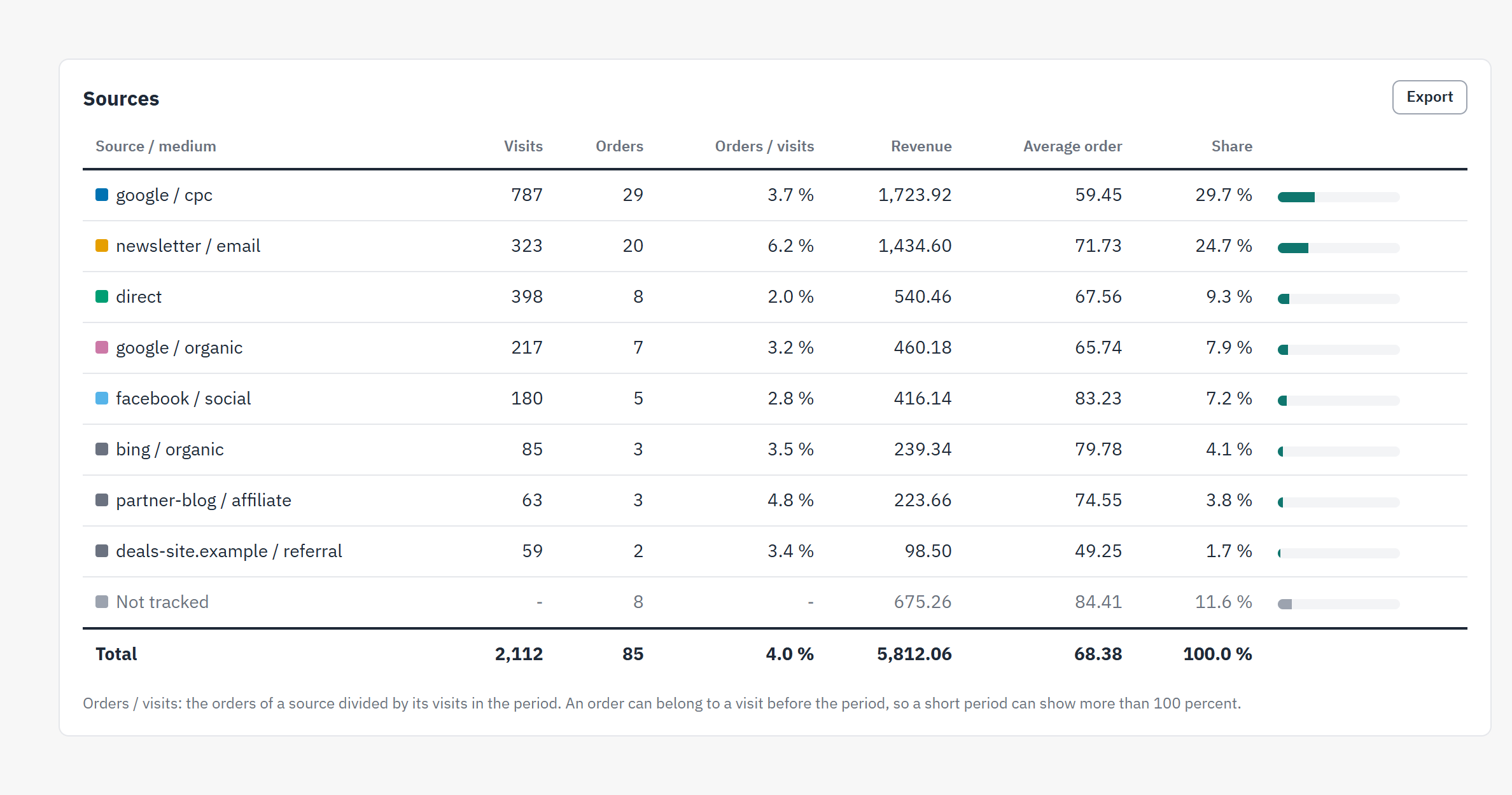
- A source and its medium.
- Visits and Orders of the source in the period.
- Orders / visits: how well the source converts.
- Revenue and the Average order of the source.
- Share of the total revenue, also as a bar.
- Not tracked: the orders without a source.
- Export saves every source as a CSV file.
- The rows. A row is what Group by says, and the first column is named after it: Source / medium, Source or Campaign. A direct visit is shown as direct, and a source without a campaign as (no campaign). A source with visits and no order has a row too. The rows follow their revenue; past the 200 largest sources, the rest is one row, such as “Other sources (35)”.
- Visits and orders. Visits are the visits of the period, without your test visits. Orders are the valid orders of the period whose touch chosen in Show is this row.
- Orders / visits is orders divided by visits, in percent. In a short period it can be higher than 100 %: an order of today can belong to a visit of last week, outside the period.
- Not tracked is always the last row before Total: the orders without a source, such as those placed before the module was installed. It has no visits. These orders are counted on purpose: they are sales too.
- Direct. A visit counts in the row of its own source, an order in the row of its first or last touch. So in the Last touch view, direct has many visits and few orders: a direct visit is the last touch only when the customer had no other.
- Export saves every source of the period as
order-sources-2026-09-01-2026-09-30.csv, with the separators of your back office’s language, so that a spreadsheet opens it with a double click. - An empty page says why: no visit yet, or no valid order in the period.