














The source in your Orders list and on the order page
The source is shown where you already work: in PrestaShop’s own list of orders, and on the page of each order. You need no export and no second tool.
The Source column in the Orders list
Open Orders › Orders. The module adds one column, Source, after Payment.
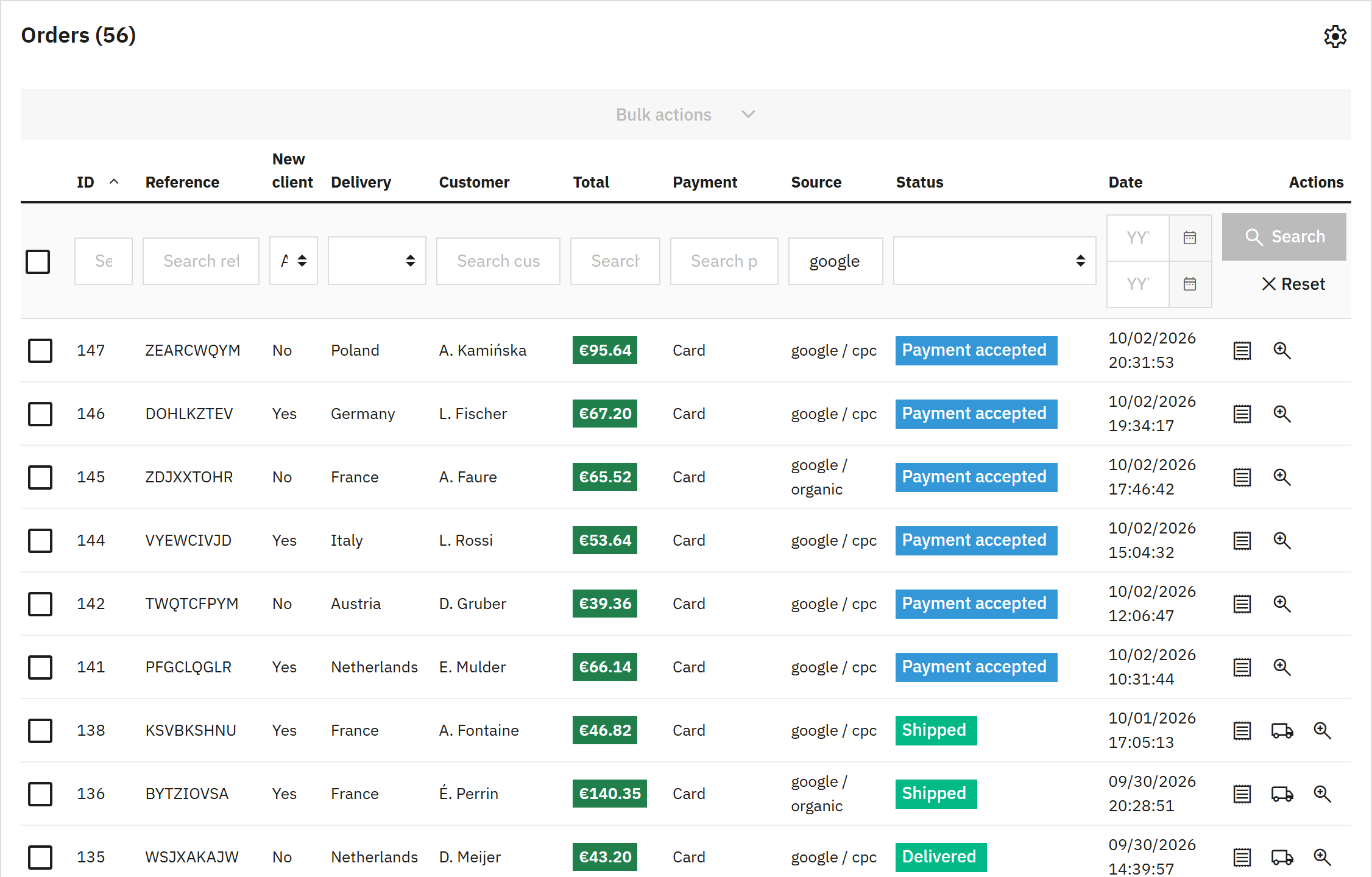
- The Source column. Click its title to sort the list by source.
- The filter box of the column.
- The last touch of the order: its source and medium.
- Search applies the filter.
| What | How it works |
|---|---|
| The value | The last touch of the order, as source and medium: google / cpc. A source without a medium is shown alone. A direct order shows direct, written like this in every language of the back office. An order without a source shows nothing. |
| The filter | Type a part of a source or a medium in the box under Source, which says Search source, and click Search. The list keeps the orders whose value contains what you typed: “google” finds google / cpc and google / organic, “cpc” finds every paid click, “direct” the direct orders. |
| Sorting | Click the title of the column: the orders of one source stand together. |
The column shows the last touch only. The first touch of an order is on its page, and in the module’s own Orders tab (The Orders tab).
The Order source card on the order page
Open an order from the list. In the narrow column on the left of the page, under the customer, the module adds the card Order source.
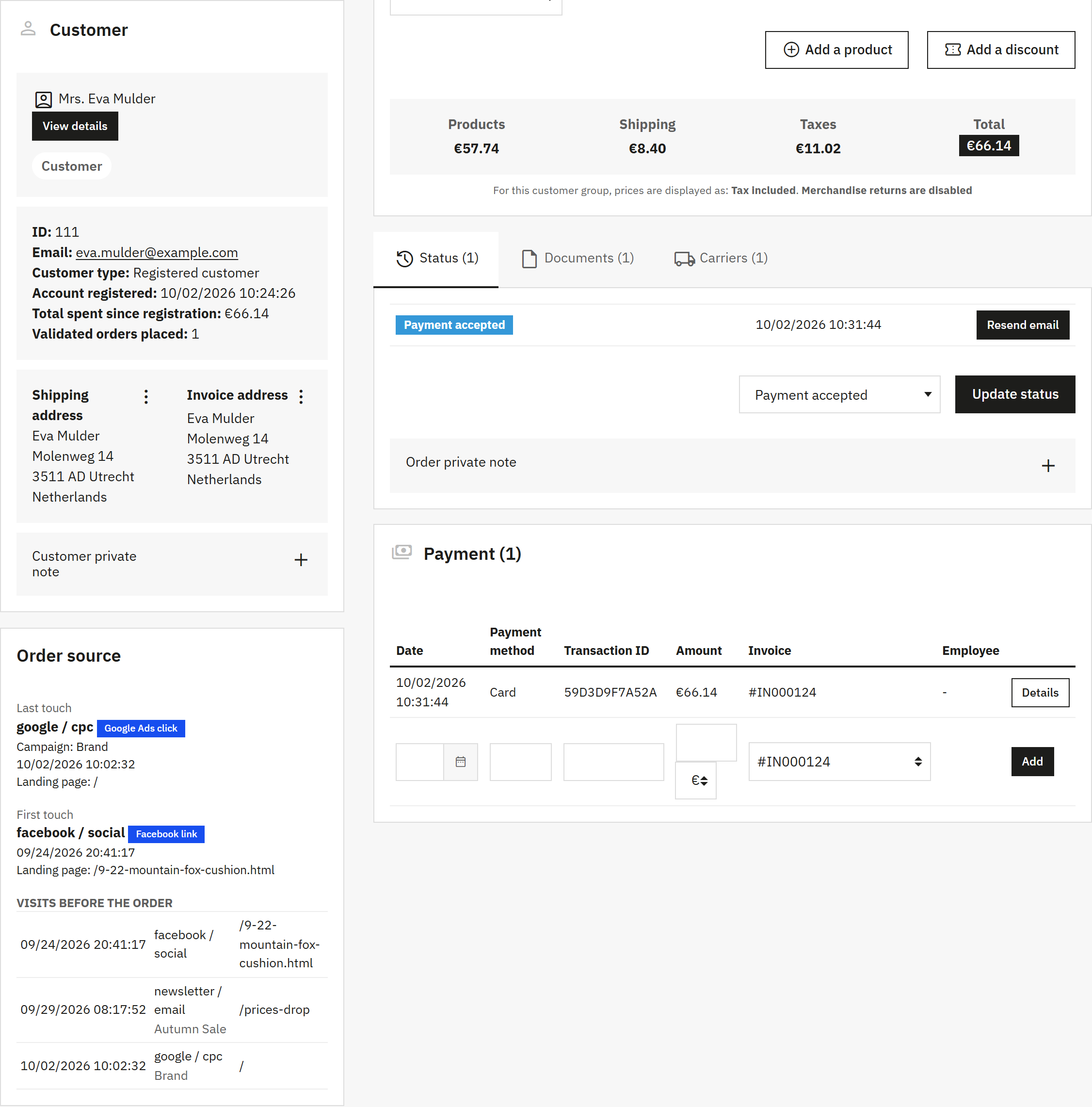
- The Order source card. The Order source card on the order page, for the journey above. shows it in full size.
| Part of the card | What it shows |
|---|---|
| Last touch | The source and medium of the last visit that was not direct, in bold. Under it: the campaign, when the visit happened and the page the visitor landed on. |
| First touch | The same for the earliest visit. |
| Source | Shown in place of the two blocks when the first and the last touch are the same visit. |
| The small label | How an ad platform marked the click: Google Ads click, Microsoft Ads click, TikTok Ads click or Facebook link. |
| Visits before the order | The visits of this visitor inside the attribution window, the oldest first, at most 20. Each line has the date, the source with its campaign under it, and the landing page. |
What stays, and for how long
The first and the last touch belong to the order: they stay for as long as the order exists. The list of visits needs the visits themselves, and old visits are deleted, after 13 months unless you chose another time (Data and upkeep: how long visits are kept). When the visits of an order are gone, the card shows the two touches without the list.
An order without a source
For such an order the card says: “No source was recorded for this order. That is the case for orders created in the back office, orders placed before the module was installed, and visitors whose browser refused the cookie.” Orders without a source (Not tracked) explains each case.
The card can be switched off too: Source card on the order page in Settings › Orders.
Who sees the column and the card
Both are parts of PrestaShop’s own pages. Every employee who may open the list of orders sees the column, and every employee who may open an order sees the card. The module’s own tabs follow the permissions you give to each profile (An employee cannot open the module’s tabs).
The Orders and Visits tabs
Two lists hold the details behind the dashboard: every order with its first and last touch, and every visit. Both are PrestaShop’s usual lists, so you filter, sort and export them the way you know.
The Orders tab
Open Orders › Order sources and click the Orders tab. It lists the orders that have a source, the newest first. An order without a source is not in this list; you find every order in PrestaShop’s own list (The Source column in the Orders list).
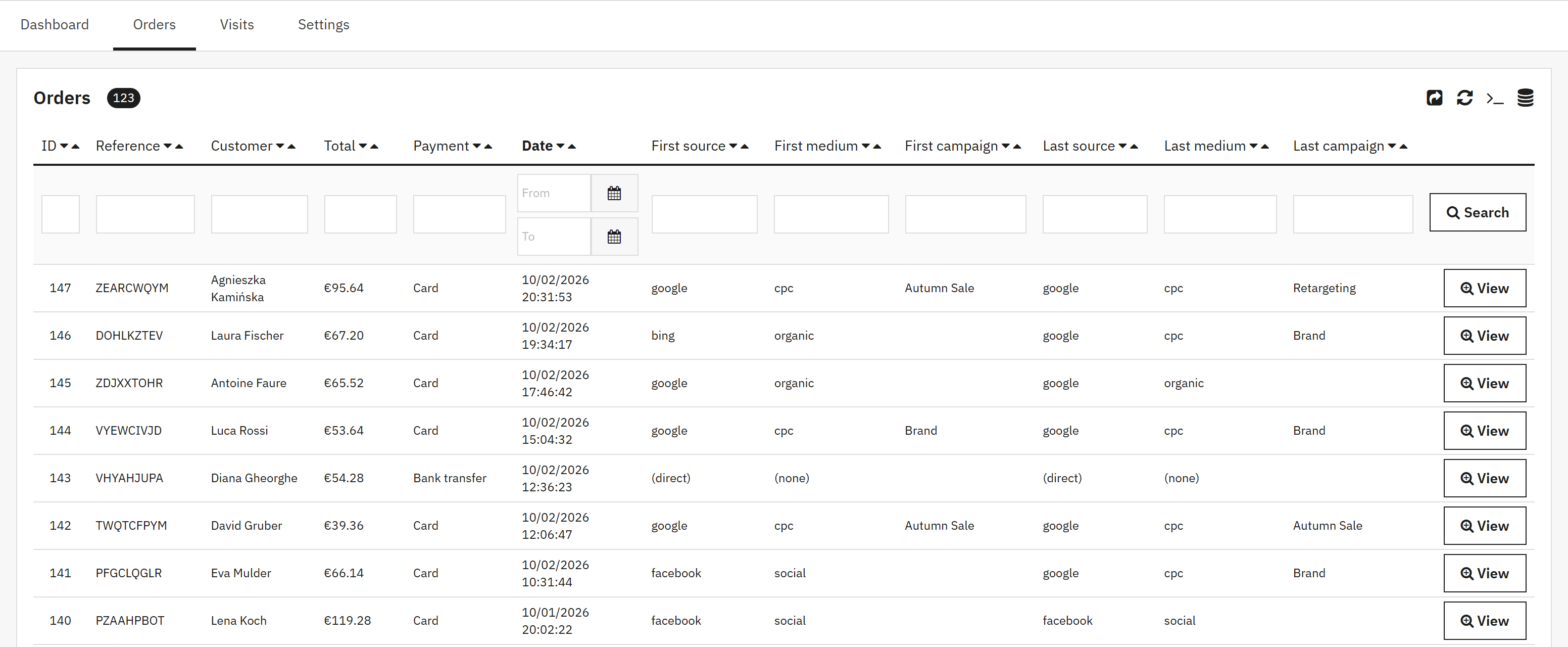
- The order: ID, Reference, Customer, Total, Payment and Date.
- The first touch: First source, First medium, First campaign.
- The last touch: Last source, Last medium, Last campaign.
- The filter row: type under a column title to keep the matching orders.
- View opens the order in PrestaShop’s order page.
Use this list when the dashboard raises a question about single orders, for example:
- Which orders did a campaign bring? Type its name under Last campaign, or under First campaign for the orders it started.
- Which orders started with one source and ended with another? Filter First source and read Last source.
- A list for your accountant or your agency. Filter, show enough rows on one page, then export: the export saves the rows the page shows (Filter, sort and export).
Total is the amount the customer paid, with tax and shipping, as on the order itself; the dashboard adds up revenue without shipping and, unless you chose otherwise, without tax. If the list has too many columns for you, switch off the first or the last touch columns in Settings › Orders (Orders: where the source is shown).
The Visits tab
The Visits tab lists every arrival in your shop, the newest first: one line per visit, not one per page.
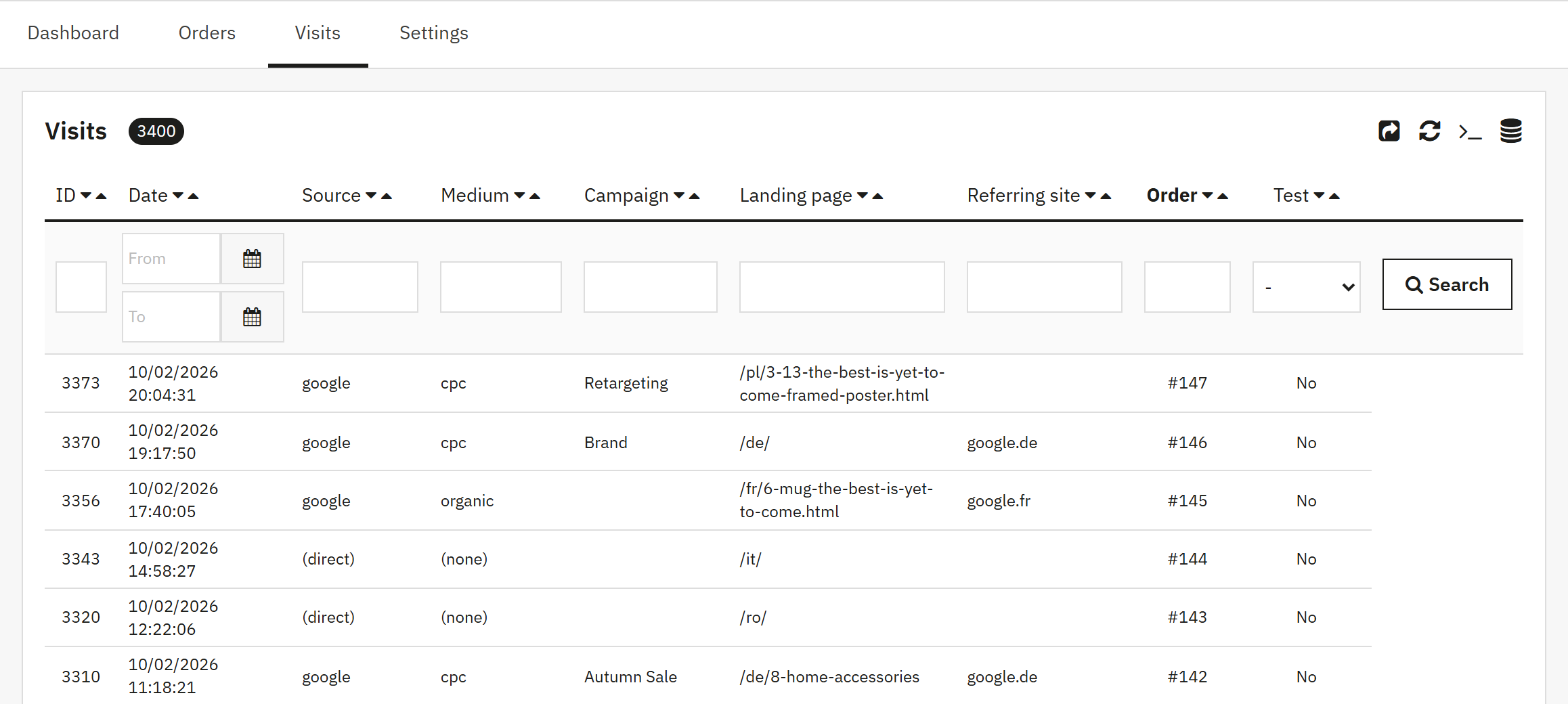
- Source, Medium and Campaign of the visit.
- Landing page: the page the visitor arrived on, without the part of the address after the question mark.
- Referring site: the domain of the page the visitor came from, when there was one.
- Order: the order this visit led to. Click the number to open it.
- Test: a visit from one of your test addresses.
| Column | Good to know |
|---|---|
| Date | When the visit started. |
| Source, Medium | Always in small letters: “Facebook” and “facebook” in two links are one source. A direct visit is listed as (direct) with the medium (none). |
| Campaign | Exactly as it was written in the link, capital letters included. |
| Order | The order number stands on the last visit of the visitor before the order. The earlier visits of the same journey show no number here; the order page lists them all. |
| Test | Test visits are listed here and left out of the dashboard (Attribution: the window and your own visits). |
A visit holds no name, no e-mail address and no IP address (What is stored, and what is not). Old visits are deleted every day, so the list goes back 13 months unless you chose another time in Keep visits for.
- Is my campaign link working? Click the link yourself, then filter Campaign by its name. Your visit is there within a minute. If recording starts After the visitor accepts cookies, accept your cookie banner on the page the link opens first.
- Which sites send me visitors? Sort or filter by Referring site. A site you know, such as a partner, can get a source of its own (Referrer rules: a source of your choice for a site).
Filter, sort and export
To filter, type in the row under the column titles and press Enter, or click Search; Reset shows everything again. To sort, click the arrows next to a column title. The export icon at the top right of the list saves the rows of the page on your screen as a CSV file, not every row that matches the filter. To export more, first choose a larger number of rows per page under the list, up to 1000. With several shops, both lists show the shop chosen in PrestaShop’s shop selector.